Serenity Interior Design Layout Docs
File Structure:
After the purchase of the Serenity Interior Design Layout, you’ll get the following files.
- Serenity Interior Design Layout.json
- License.txt
Importing JSON File to Divi Library: –
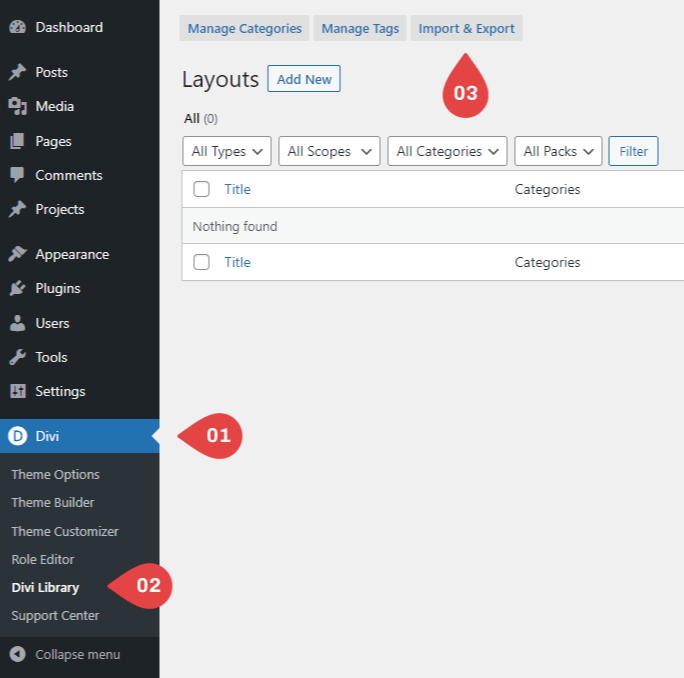
- Navigate to Divi > Divi Library.
- Click on “Import & Export tab”.
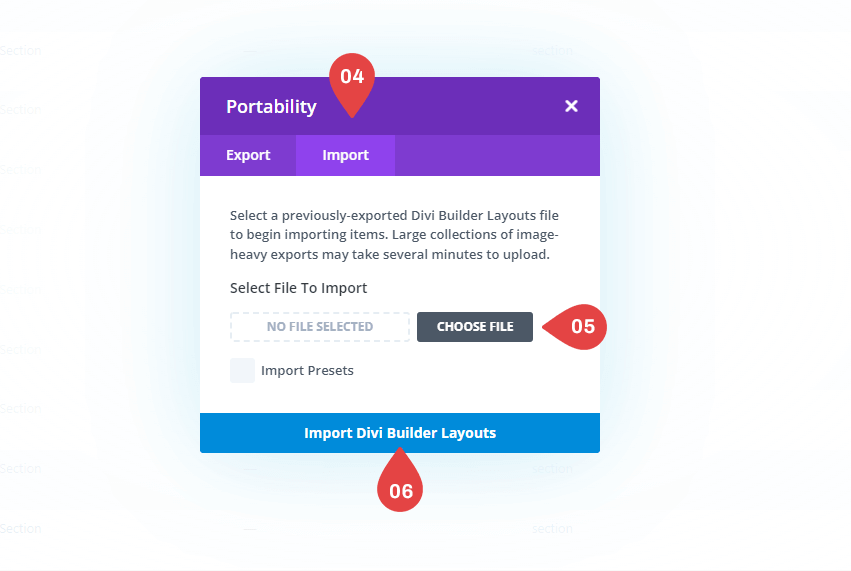
- Select “Import” from the pop-up.
- Click “Choose File” and select the JSON file from your computer.
- Once the JSON layout is selected, click “Import Divi Builder Layouts” and wait for the import process to complete.
- The layouts will be imported to your Divi Library.
How To Use Divi Library Items ?
When you successfully import our Serenity Interior Design Layout.json file then you will see three layout json file into your Divi Library.

Step 1: Importing Header and Footer in Theme Builder
Setup Your Primary Menu
Start by creating your menu in the appearance settings of your WordPress website.
For Header :-
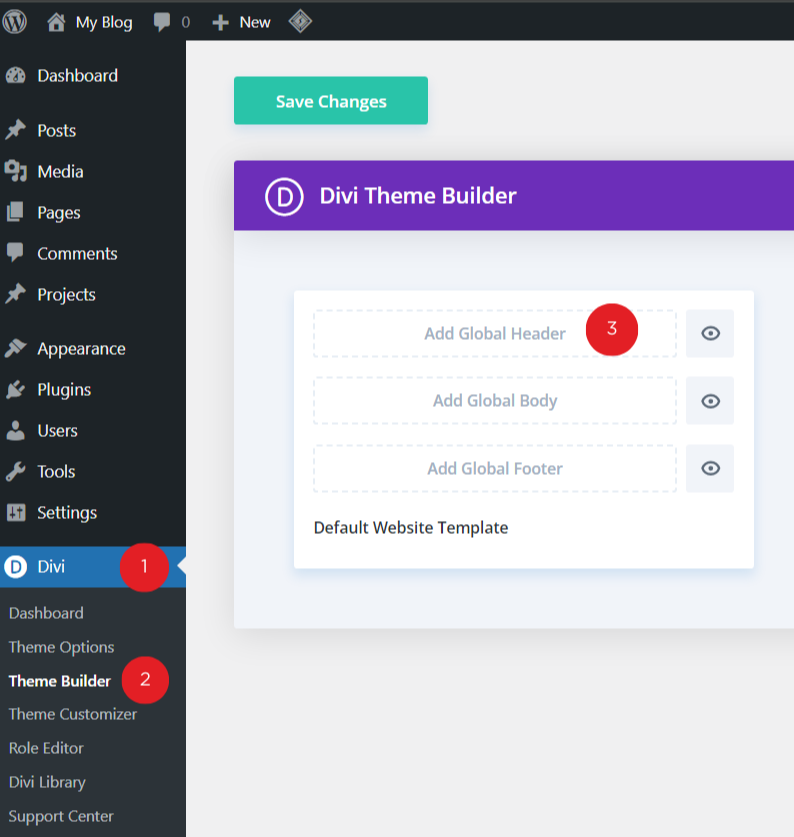
1. Go to Divi > “Theme Builder”
2. Click on “Add Global Header”
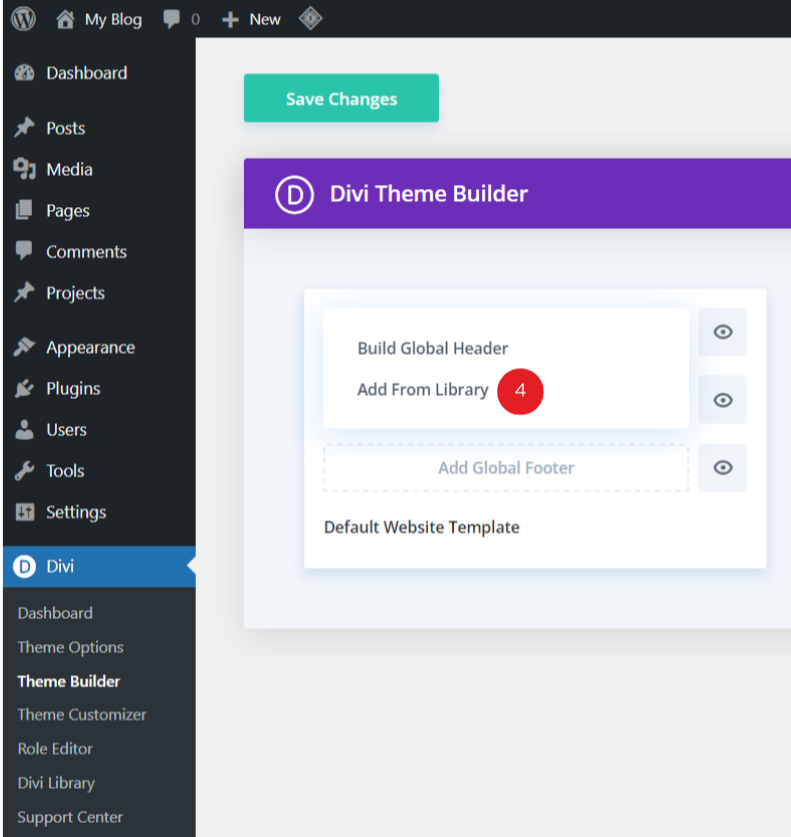
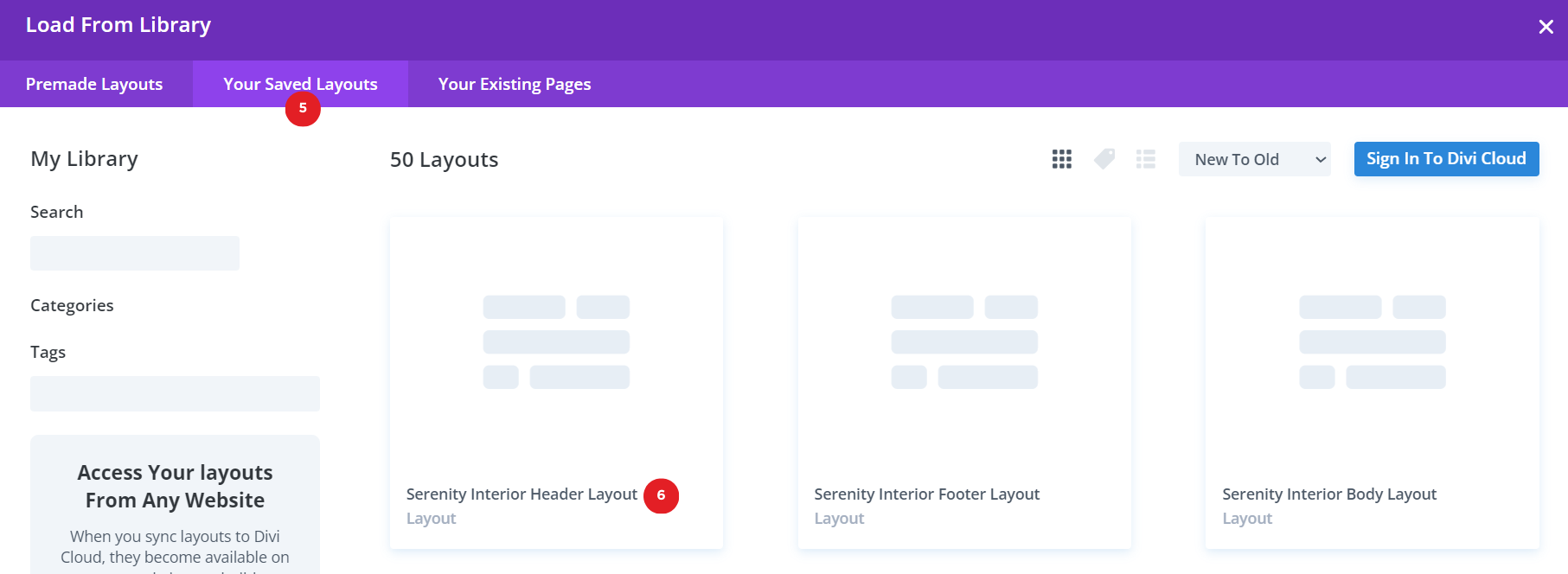
3. Choose “Add from Library”
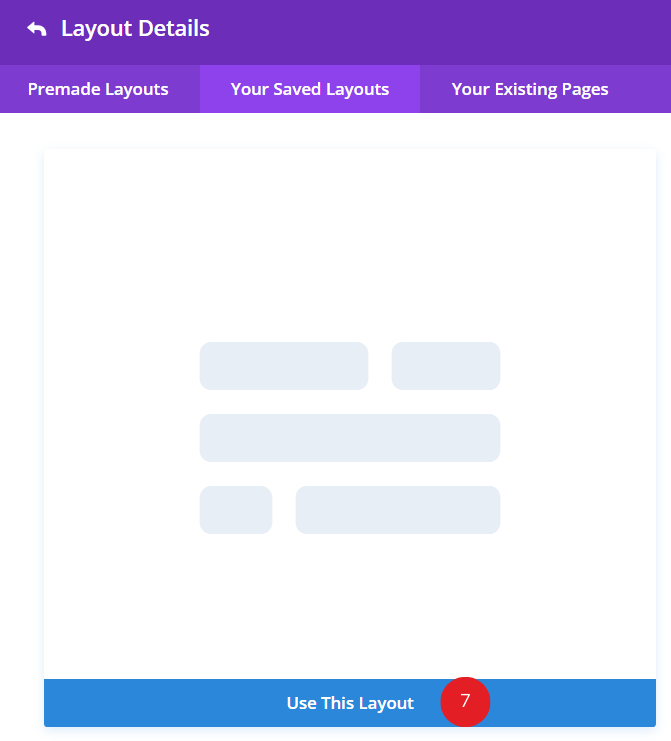
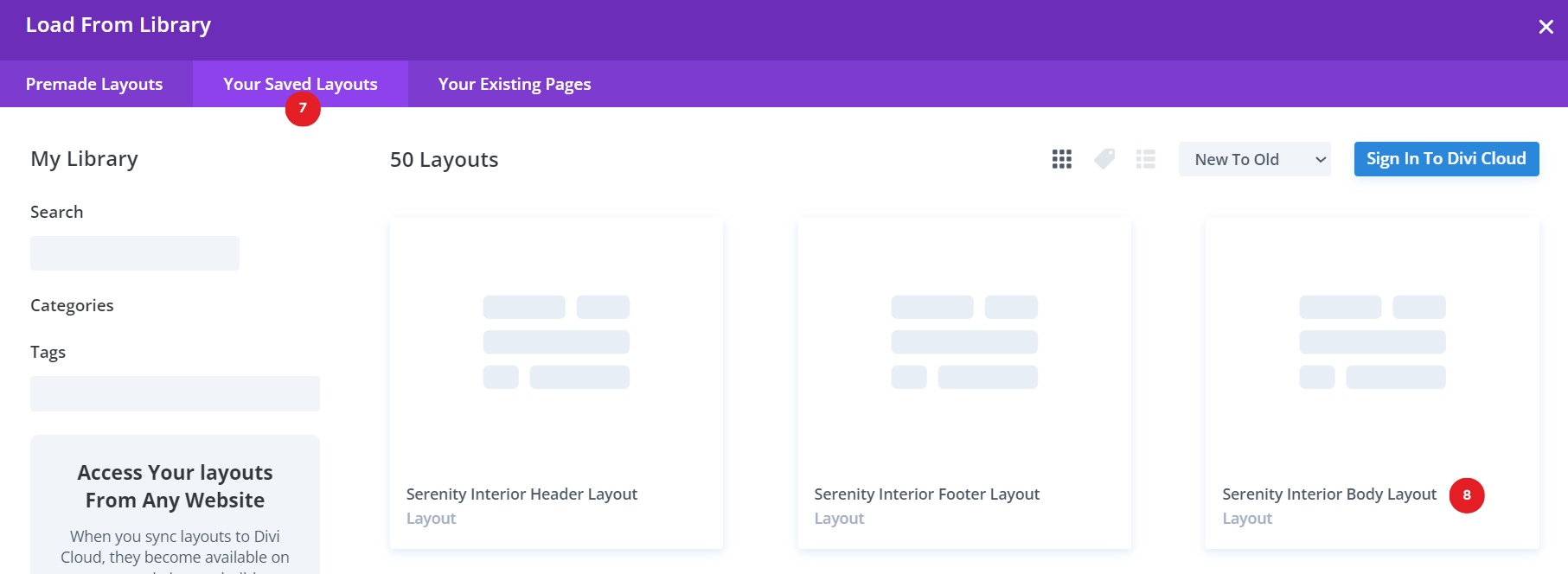
4. Select “Your Saved Layouts“ and select your Header Layout (Serenity Interior Header Layout.json)
5. Click the “Save Changes” button
For Footer :-
1. Same as a process for footer layout
Step 2: Import Homepage
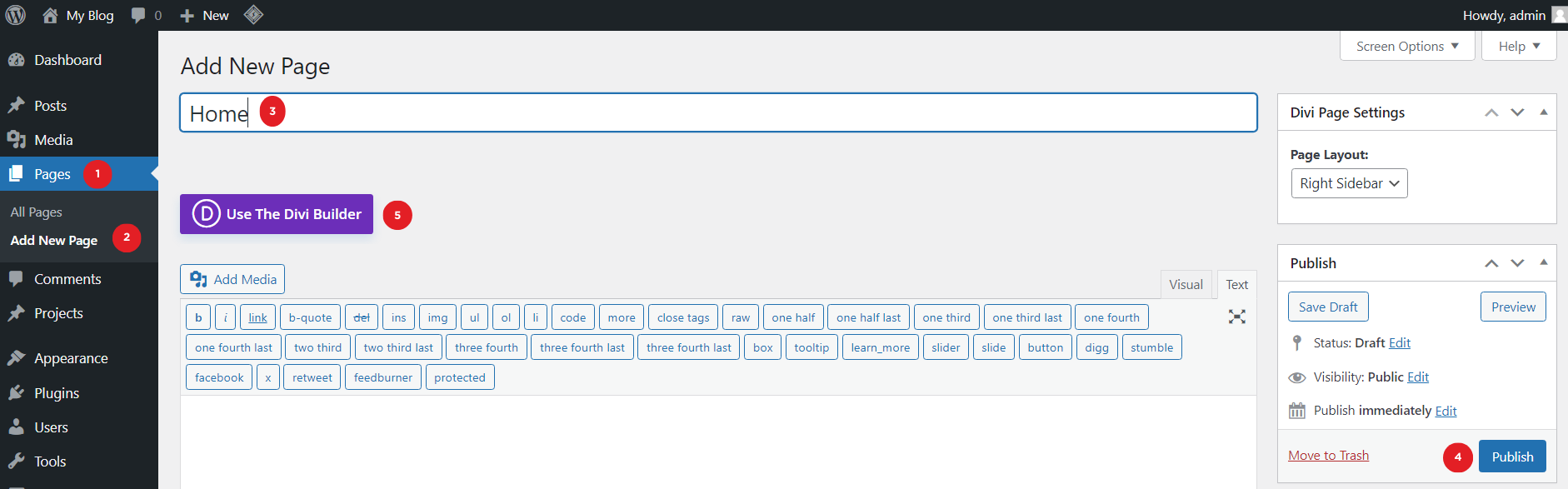
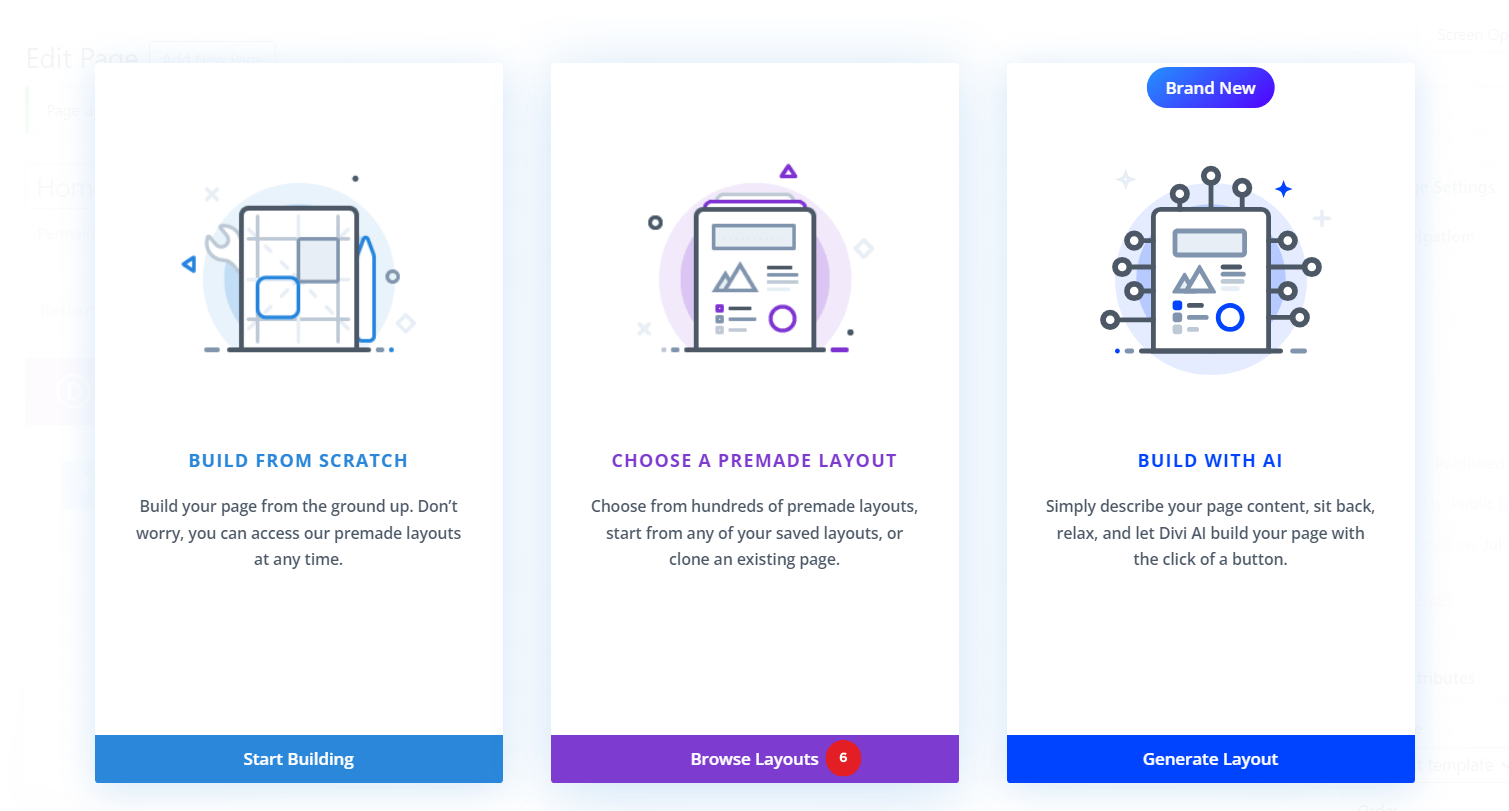
Create New Page > Click on use the Divi Builder > click on “+” Portability icon (add from library) > Click on Your Saved Layouts > Choose Layout “Serenity Interior Body Layout” > Click on Use This Layout

Note: After import the layout you should must be click on “Save Changes” button. Otherwise your layout will not be visible on your website.
Please Do Not Delete this
Problems while importing the layout?
If the importing process stops at 100%, or you have another problem, please make sure that you deactivate security plugins like Wordfence while importing. Then it should work fine.
Customer Support
If you encounter any issues, please don’t hesitate to get in touch with us.
- Technical Support – Submit A Ticket
- Email Support – [email protected]